iPad App Development: Multitasking, Apple Pencil and Field Work
What it takes to build an iPad app people work in: adaptive layouts, resizable windows, Apple Pencil, keyboard and pointer support, and enterprise rollout to field teams.
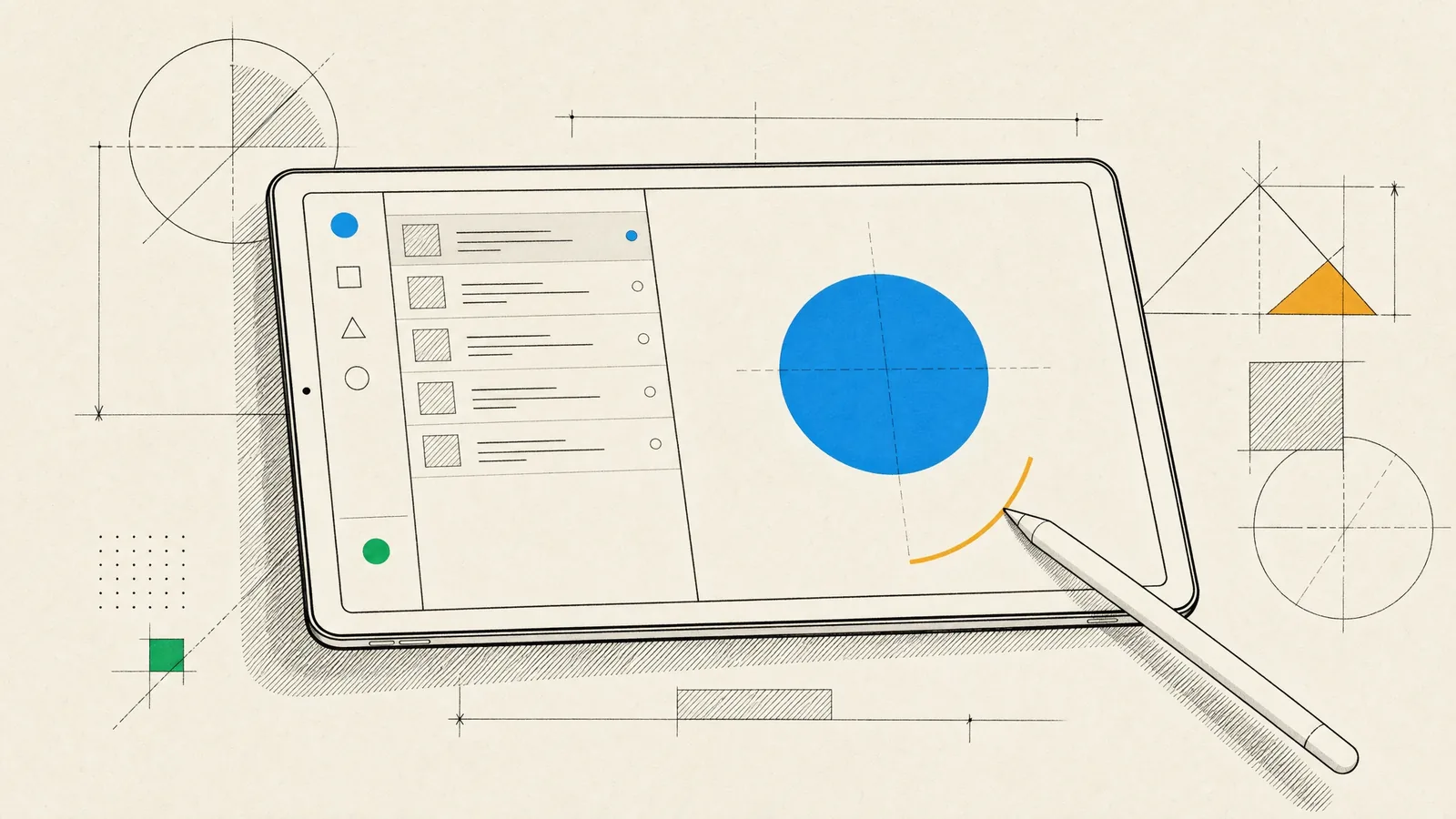
A lot of iPad apps are iPhone apps with the layout stretched, and people notice. The apps they keep using make real use of the space, sit comfortably next to other apps, and respond properly to a keyboard, a trackpad and an Apple Pencil. Good iPad app development means building that second kind.
In practice, the layout has to make sense at every window size. Content can be dragged in from other apps and out to them, and frequent actions have keyboard shortcuts. For business use, the app also has to roll out to a fleet of devices, take its configuration remotely, and keep working offline in a warehouse, a clinic or on a building site.
What we build for iPad
The iPad earns its place when people work on their feet, sit with a customer, or need more room than a phone gives them. Typical products include:
- Field service and inspection apps with checklists, photos with markup, signatures and offline sync for technicians and inspectors.
- Sales and retail tools for staff who work face to face with customers, covering catalogs, order capture and clienteling.
- Healthcare and MedTech apps, such as clinical forms, patient education at the bedside and dashboards for connected devices.
- Document review, for example contract review and annotation in LegalTech workflows, with Pencil markup on PDFs.
- Business intelligence and financial dashboards that show several charts and a filter panel at once.
- Creative and note-taking tools built around the Pencil.
- Kiosks and check-in counters locked to a single app.
Larger layouts, windows and multitasking
Layouts that use the space
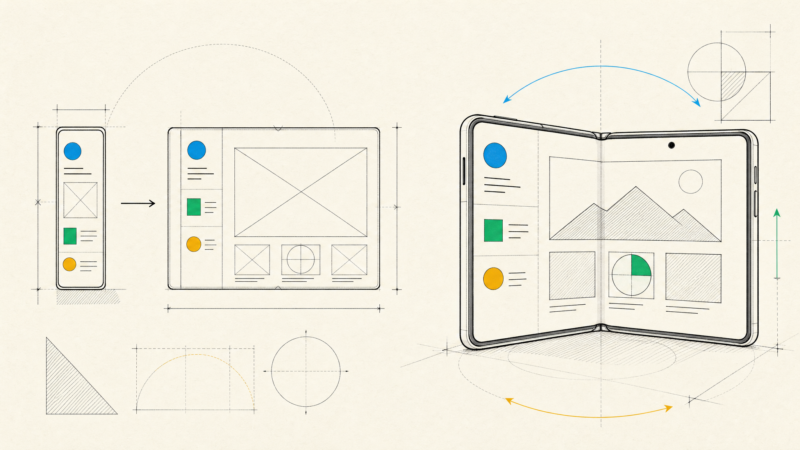
Full screen is only one of the sizes an iPad app runs at. People resize windows and put apps side by side, and Apple has deprecated the old setting that let an app insist on full screen. So we design for the available width rather than for a device: compact, medium and wide layouts, with defined behavior in between. If a layout really can’t work below a certain size, the app declares a minimum window size instead of breaking.
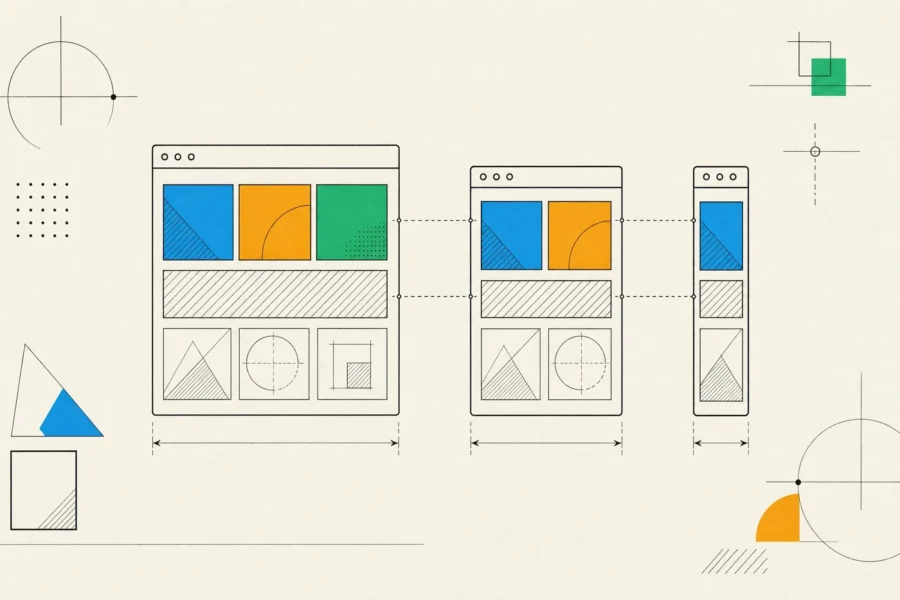
The structures that work will look familiar from the Mac: a sidebar for navigation, then a list and a detail view, collapsing gracefully as the window gets narrower. SwiftUI’s split views and UIKit’s split view controller handle most of this, including the collapse to a single column. Inspectors show properties next to the content instead of covering it, and popovers take the place of full-screen modals so people keep their context.
The iPhone screen with everything scaled up doesn’t work. More room should mean more information on screen and fewer navigation steps, rather than bigger buttons. Both orientations matter, and people rotate the device in the middle of a task, so we test the transitions as well as the end states.
Working alongside other apps
An iPad app is often one of several tools on screen at once, and that brings its own work:
- A document or record can open in its own window, and each window restores its own state when it comes back.
- Drag and drop works between apps, for photos from Files into a report, text into an email, or a record into a calendar event.
- Document-based apps open and save files in place in iCloud Drive and other file providers, instead of locking everything in a private silo.
- Keyboard shortcuts for frequent actions are defined through the same commands API that builds a Mac menu bar, so they appear in the system’s menus. Tab and the arrow keys should move through forms and lists.
- People using a trackpad or mouse get hover effects, right-click context menus and precise selection.
- iPadOS may terminate background apps to reclaim memory, so the app saves its state continuously and restores it without fuss.
Apple Pencil: when it is worth it
PencilKit is the fast path. You get a low-latency canvas, Apple’s tool picker and a drawing format you can store and sync. It’s a good fit for annotating photos and documents, capturing signatures and taking handwritten notes, and it can let fingers scroll while only the Pencil draws, which matters on forms. A custom inking engine, usually built on Metal, only makes sense if you need specific brush behavior, real-time collaborative drawing or a data format of your own. That’s a much larger investment, and we’ll make that clear before you commit to it.
The Pencil also does more than draw:
- Pressure and tilt, for tools that respond to how the Pencil is held.
- Double-tap, and squeeze on newer models. Both should respect the action people chose in Settings.
- Hover on supported iPads, which is useful for previewing a brush or showing where a mark will land.
- Scribble, which turns handwriting into text in standard text fields with no extra work. Custom text inputs need explicit support.
Before any of that, ask how many of your users will actually pick up a Pencil. The hardware being there doesn’t justify a drawing tool. For a forms-heavy field app, Scribble plus signature capture is usually enough.
iPad in the enterprise and in the field
Business deployments raise questions consumer apps never face. The first is how the app gets onto devices:
| Distribution | Best for | What to know |
|---|---|---|
| Public App Store | Customers and partners | Full App Review; anyone can find it |
| Unlisted App Store app | Specific audiences with a direct link | Reviewed, but not searchable or browsable |
| Custom app through Apple Business Manager | Your own staff or named client organizations | Reviewed, distributed privately, usually deployed through MDM |
| Apple Developer Enterprise Program | Large organizations distributing strictly in-house | Strict eligibility; you manage certificates and distribution yourself |
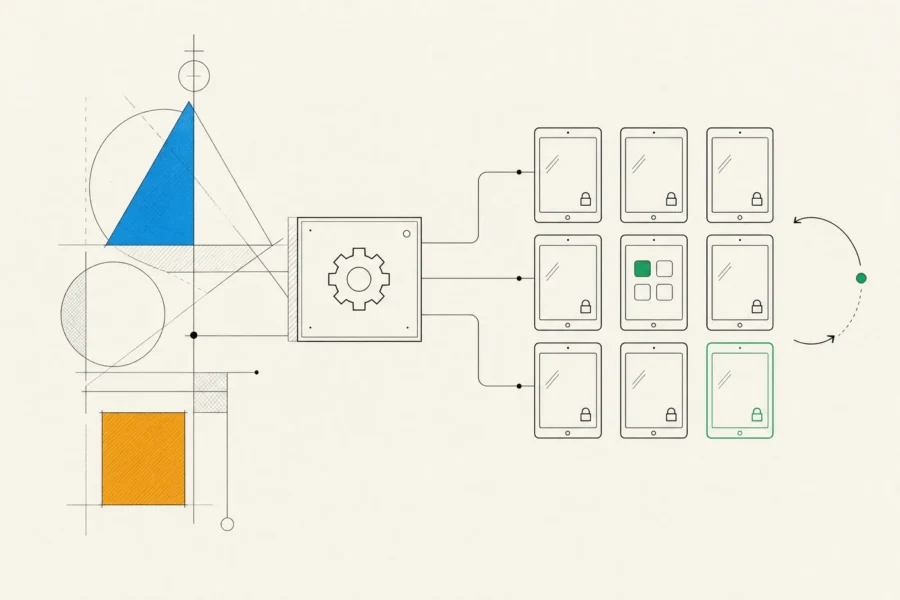
With mobile device management (MDM) in place, the app can install silently on supervised devices. Managed app configuration pushes settings such as the server address or tenant, so field staff never have to type configuration in. Managed open-in rules keep company documents inside managed apps. For kiosks, Single App Mode or Guided Access locks the device to your app.
Field work also means offline-first engineering. The app needs a local database, a queue of pending changes, and a conflict strategy agreed with the business for when two inspectors edit the same record. Photo uploads resume in the background, and people can see the sync status. Devices shared across shifts need fast sign-in and sign-out, single sign-on with your identity provider, and local data cleared at sign-out. The server side of sync matters as much as the app, and our backend development team builds both ends. For scanning, the camera handles occasional barcodes well, but dedicated Bluetooth scanners still win in high-volume warehouse work.
How we approach iPad app development
For a work app, discovery happens where the work happens. A business analyst and a designer watch people go through the current process, be it paper forms, a laptop on a cart or a phone that’s too small, and note the conditions: gloves, glare, standing, one hand holding the device. We design at several window widths from the first sketches. Pencil interactions get prototyped on a real iPad, because you can’t judge latency or hand position on a monitor.
When there’s an iPhone app too, the two share Swift packages for models, networking and business rules and ship as one universal app. Our iOS app development article describes the engineering practice across the platform. QA covers window sizes and orientations, keyboard and trackpad, Pencil models, the oldest supported iPad, offline and poor-network scenarios, and managed configuration through a test MDM setup. Business rollouts usually begin with a pilot group, on TestFlight or a small MDM group, before reaching the whole fleet. You get a build at the end of every short iteration, regular written reports, and the code in your repository.
When an iPad app is the right choice
The iPad is strongest where a laptop is awkward and a phone is too small: standing, walking, showing something to a customer, writing by hand, running a counter. It also works well for long sessions with a lot of reference material on screen.
It’s the wrong choice if your users sit at desks all day. A web application reaches them with less friction, and you don’t have a device fleet to manage. For a quick status check, a phone does the job better. And if the plan is really just the iPhone app at a larger size, start with a universal version of your iPhone app with adaptive layouts, then add iPad-specific features where usage justifies them.
Frequently asked questions
Should we build a separate iPad app or a universal app?
Universal, almost always. You get one App Store listing, one purchase, shared code and a single release process. An iPad-only app makes sense only when the product has no meaningful use on iPhone.
Do we have to support resizable windows?
In practice, yes. The full-screen opt-out is deprecated, so every iPad app should handle arbitrary sizes. We set sensible minimum sizes and design layouts around the available width.
Is PencilKit enough, or do we need a custom drawing engine?
For annotation, signatures and notes, PencilKit is enough. A custom engine pays off only for specialized brushes, real-time collaboration or a proprietary format.
How do we give the app only to our employees?
Most companies use a custom app through Apple Business Manager, deployed with MDM. The Enterprise Program is for organizations that qualify and are ready to manage distribution themselves.
Will our iPad app work on a Mac?
On Apple silicon Macs, iPad apps are available by default unless you opt out, so it’s worth testing yours there. For a real Mac experience with proper menus and windows, Mac Catalyst is the next step.
If you’re planning an iPad app for staff in the field or at a counter, write to us about where it will be used and how your devices are managed today, and we’ll sketch how distribution and offline sync could work for your setup.